Manual
This manual explains how to use Movy, chapter by chapter. If you are new, work through the Quick start first. After that, each chapter stands on its own.
Contents
What Movy is
Movy is a tool for Schwung. While it is open, it runs in place of Move's own software and takes over the whole device: pads, knobs, buttons, screen, sound, master volume and power button. Close Movy and Move comes back.
Inside Movy you work with:
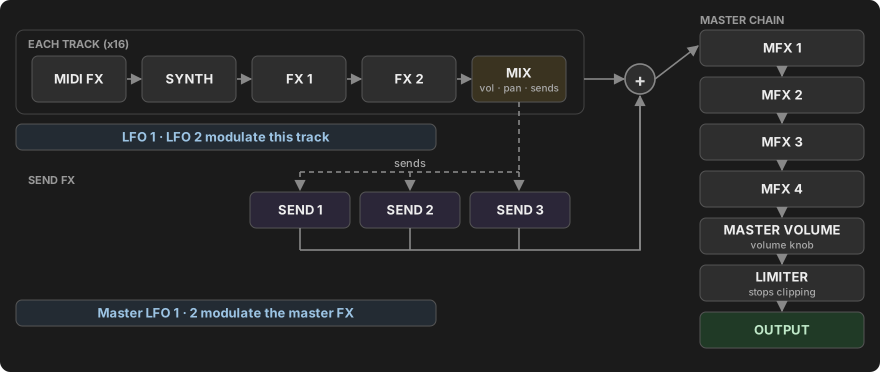
- 16 tracks, arranged as four groups of four. Each track hosts its own chain of Schwung modules: a MIDI effect, a synth (or drum machine), two audio effects and a mixer strip.
- Clips of notes on each track, played by a sequencer that behaves like Move's, extended with per-step locks, probability, conditions and automation.
- A master chain with three send effects and four master effects.
- Sets: each Set is one whole project, saved automatically.
If you know Move
Movy's sequencer is deliberately close to Move's: clips, Session view, live recording with count-in, step entry, Capture, copy and delete all work the way Move's do. Ableton's Move manual is a good companion. This manual covers the same ground more briefly and spends its time on what Movy adds.
Throughout the manual, anything that works the same as on Move sits in a collapsed yellow Works like Move box. Move owners can skip those boxes; newcomers should open them, they hold the basics. Everything outside them is new in Movy or works differently.
The main differences:
- Instruments are Schwung modules, not Move's own instruments, drum racks or sampler.
- There are 16 tracks instead of 4.
- The screen keeps a module's parameters visible while you sequence. Sequencer state shows on the pads and step buttons, and in short on-screen messages.
- Extra pages Move does not have: Step, Clip and Set parameters, Settings, a CPU meter, and Movy's own Sets list.
How this manual writes controls
| Written as | Means |
|---|---|
| Shift + Step 3 | Hold Shift, then press Step 3. |
| Hold a step | Keep it pressed while you do the next thing. |
| Tap | A short press and release. |
| Touch a knob | Rest a finger on it without turning. The knobs are touch-sensitive. |
| Jog / jog click | Turn / press the large wheel left of the pads. |
| + / − | The octave buttons (Up / Down) at the bottom right. |
Button names follow the labels on Move. Note/Session is the button to the right of Back.
Not sure what the jog does?
Rest a finger on the jog wheel for about a second without turning it. A prompt at the bottom of the screen says what a click will do on this page.