Tracks & sounds
Tracks and chains
Movy has 16 tracks. Each track is a chain of slots that sound passes through:
| Slot | Holds |
|---|---|
| MIDI FX | A MIDI effect (arpeggiator, chord generator…) that changes the notes before the synth. |
| SYNTH | The instrument: a synth, sampler or drum machine. |
| FX 1, FX 2 | Two audio effects. |
| LFO | The track's two LFOs (see Locks, automation & LFOs). |
| MIX | The track's level, pan and send amounts (see Mixing). |
Pick a track with the track buttons. They address the four tracks of the focused group. To reach tracks 5–16, see Session view → Tracks and groups.
The Chain view
Back out of a module's pages to see the chain. The header names the slot under the cursor and the bar under it shows where you are in the chain.
| Control | Action |
|---|---|
| Jog | Move between slots. |
| Jog click on a loaded slot | Open that module's parameter pages. |
| Jog click on an empty slot | Open the module browser. |
| Shift + jog click | Open the browser to replace the slot's module. |
| Back | Leave Movy (asks first). |
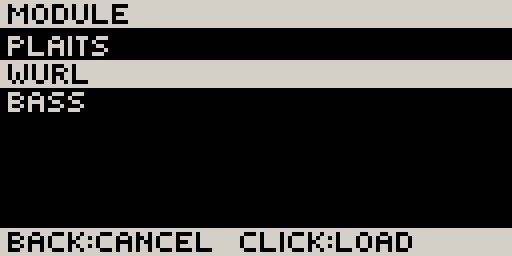
In the browser, turn the jog and click to load. Back cancels. NONE empties the slot. Loading a module is one undo step, so Undo brings the old module back with its settings.
Modules follow Movy's tempo and transport, so a synced arpeggiator or delay locks to your Set.
Parameter pages
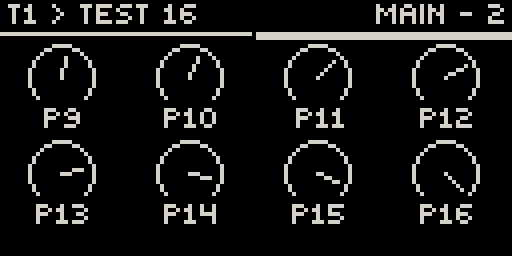
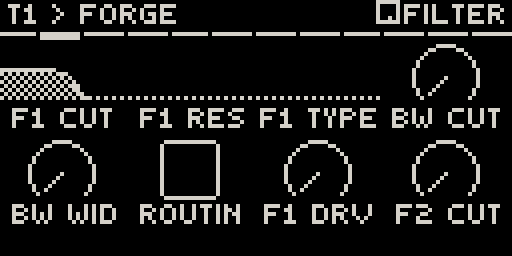
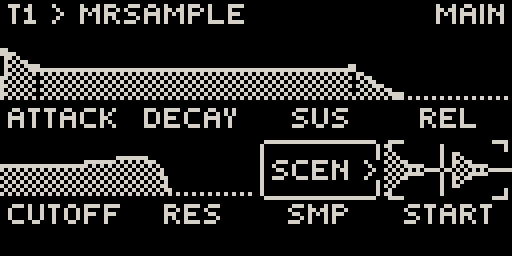
Jog click on a loaded slot opens the module's parameters, eight at a time. Each cell is drawn for what it is: an arc for a continuous value, a switch for on/off, a word for a choice, a fader for a level, and pictures where the module provides them: an envelope, a filter curve, a sample's waveform.
| Control | Action |
|---|---|
| Knobs 1–8 | Change the parameter. |
| Touch a knob | The header shows its full name and value. |
| Jog | Next / previous page. The page bar under the header shows where you are. |
| Shift + jog click | List the module's sections and jump to one. |
A module that is still loading shows empty cells. Its page appears as soon as it is ready. Large modules take a few seconds.
Lists
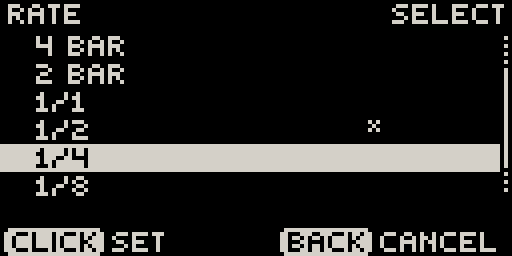
Turning a list knob (a filter type, a waveform) steps through its options and shows them in a pop-up. Click the jog while touching it to see the whole list as a menu:
Presets
On a module's preset page, knob 1 browses presets and loads each one as you pass it. Shift + knob 1 jumps a whole bank on modules that have banks (OB-Xd, Dexed). Changing a preset is one undo step, so Undo returns the module exactly as it was, including your tweaks.
Samples and other files
A parameter that points at a file (a sample, a wavetable, a SoundFont) can't
be turned. Hold its knob: the header names the file and the bottom row reads
CLK BROWSE. Click the jog to open the file browser in that parameter's folder:
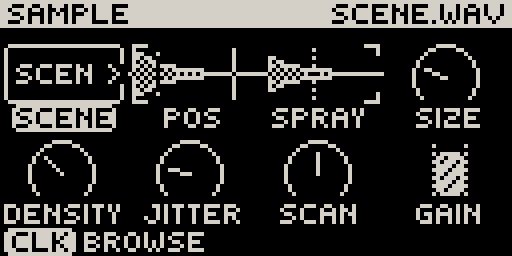
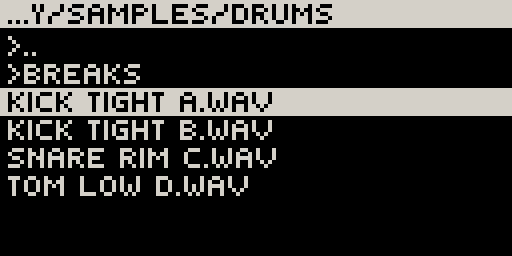
Turn to move, click to load, Back to cancel. Folders are marked > and
.. goes up. On modules that support it, the file under the cursor plays as you
browse, so you can audition samples before choosing. Movy remembers the last
folder for each parameter.
Module screens
Some modules have a full screen of their own behind one knob, such as DR32's engine
picker or Breakbeat's slice editor. Hold the knob: the bottom row reads CLK
OPEN. Click the jog to open it. The module then uses the jog, the click and the
knobs; the pads still play. Back steps out a level, Shift + jog leaves at once.
Drum modules
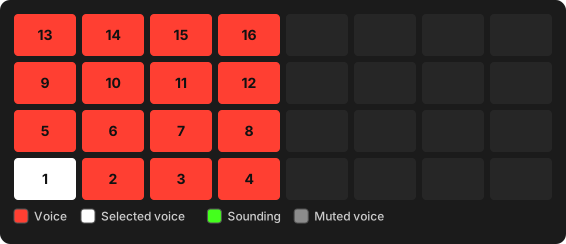
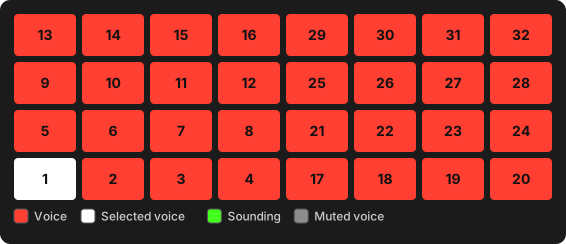
Load a drum module and the pads turn into a drum rack, one pad per voice. A rack of up to 16 voices uses the left half of the pads; a 32-voice rack (DR32) uses both halves. Voices are numbered from the bottom-left pad:
Press a pad to choose the voice you edit. The module's pad pages come first: they edit the selected voice, and their header shows a small pad icon and the voice name. Shift + pad selects a voice without playing it.
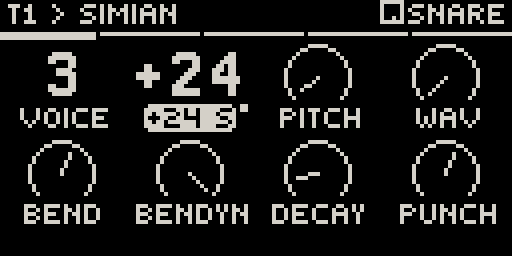
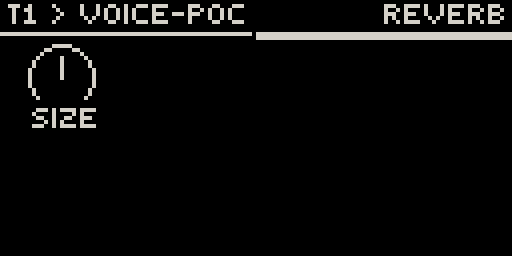
- On a pad page, pressing another pad switches to the same page of that voice.
- On a kit-wide page (Reverb, Master…), pressing a pad selects it but stays on the page.
- A playing pattern never changes the page. Only your own presses do.
The selected pad lights white, a sounding pad green. To mute one voice, see Playing the pads → Muting one drum voice.