Session view & songs
Press Note/Session to switch between Track view (the selected track: its pages, its pads, its clip on the steps) and Session view. Tap it to stay; hold it to look and come back when you let go. Holding it in Session view opens the Session mixer.
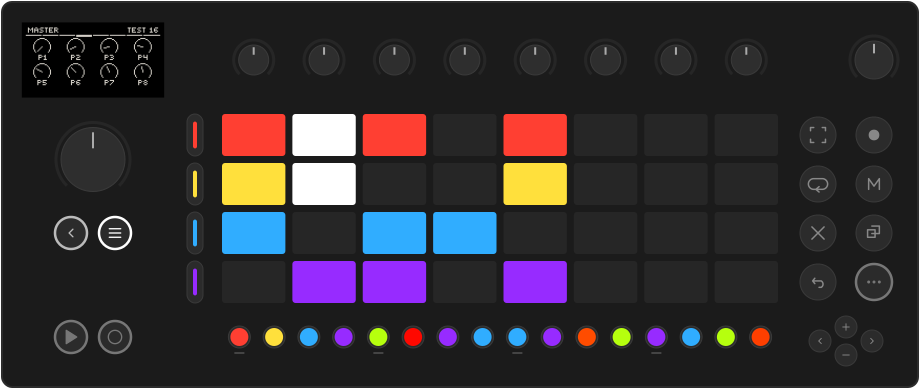
Works like Move: the clip grid and launching clips
- The pads are the clip grid of the focused group: one row per track, one column per clip slot. A clip lights in its track's colour; a playing clip pulses white.
- Press a clip to launch it: at once when stopped, on the next bar while playing. Launching a clip also selects its track.
- Press an empty pad to select that slot (for recording or a generator). The track stops.
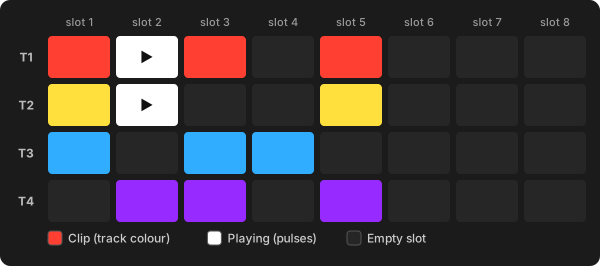
- The step buttons pick a track (below).
- The screen shows the master chain: three send effects, four master effects and the master LFOs. See Mixing & effects.
Tracks and groups
The 16 tracks are arranged as four groups of four. The track buttons and the clip grid show one group at a time, the focused group.
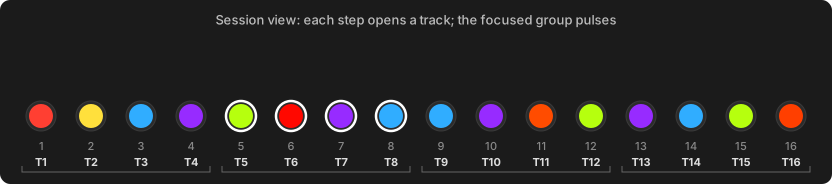
In Session view, the step row is a track selector: one step per track, in its colour.
| Control | Action |
|---|---|
| Step 1–16 | Open that track. Tap to stay; hold to look and come back. |
| + / − | Move the focused group. + goes towards tracks 1–4, − towards 13–16. |
| Hold Note/Session + step | From any view: jump to that track and keep the selector up, so you can audition track after track. |
The four tracks of the focused group pulse. While you hold Note/Session, the track you are on lights solid white.
Mute and solo
Works like Move: Mute and Shift + Mute, on 16 tracks
| Gesture | Result |
|---|---|
| Mute | Mute / unmute the current track (Track view). |
| Mute + track button | Mute that track. |
| Shift + Mute (+ track button) | Solo instead. |
Mutes and solos are latches: press again to undo. Solo is exclusive (soloing another track moves it), and when it ends your earlier mutes come back. Muting silences the sequencer; you can still play a muted track's pads by hand.
The mute map. The track buttons only reach the focused group, so hold Mute anywhere (Track view, Loop view, Session view) and the step row becomes a mute map of all 16 tracks. Press a step to mute that track, Shift + step to solo it. A dim colour means silenced:
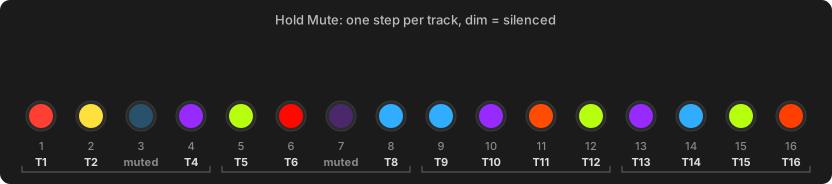
Mute itself lights bright whenever anything is muted or soloed, even in a group you can't see.
Scenes
A scene is one column of the clip grid across all 16 tracks. In Session view, hold Loop: the odd step buttons (1, 3, 5 … 15) become scenes 1–8.
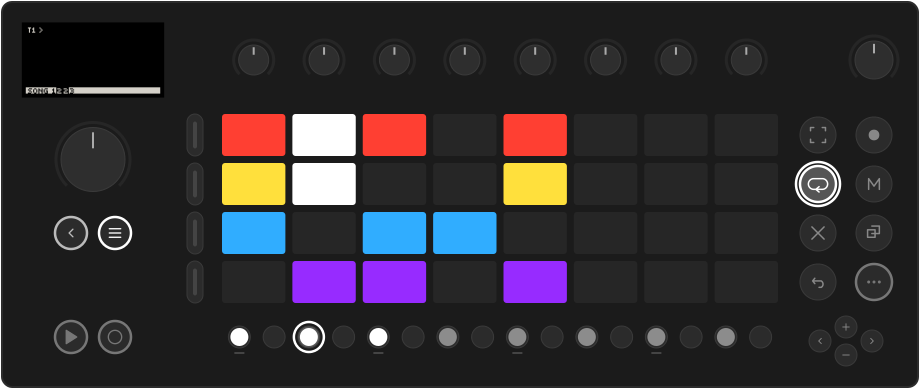
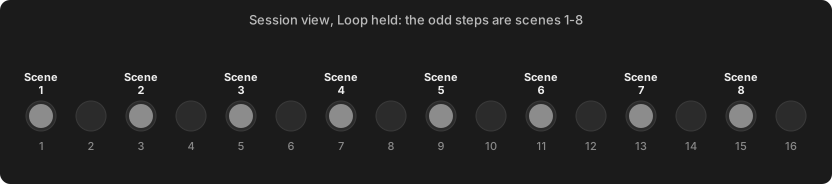
Press a scene to launch it. Every track with a clip in that column starts it on the next bar, and tracks with an empty slot stop.
Songs
Keep holding Loop and press more scenes: that is a song. The first press starts a new song and each further press adds a scene to the end. Press a scene twice to play it twice as long. Let go of Loop and the song plays through in order, then loops.
- Each scene lasts as long as its longest clip.
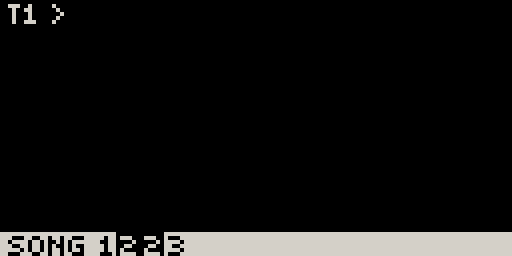
- The bottom of the screen shows
SONGwith the scene numbers and the current one boxed. - One bar before a change, the next scene's clips flash in the grid.
- An empty scene (no clips on any track) ends the song: everything stops, but the transport keeps time, so you can launch back in. End a song on an empty scene and it plays once instead of looping.
- Launch any clip by hand to leave the song; what is playing carries on. Stop and Play start the song from the top. The song is saved with the Set.
- Holding Loop and pressing a scene always starts a new song. To end a song, launch a clip by hand.
Sketch an arrangement while you jam: intro, verse ×2, chorus, verse, chorus ×2, end.