Generators
Movy's generators offer new takes on a clip. Each one starts from what you played and listens to the rest of the scene: its chords, its groove, its accents. You always hear the options before anything is kept, next to your original.
| Gesture | Generator | Starts from |
|---|---|---|
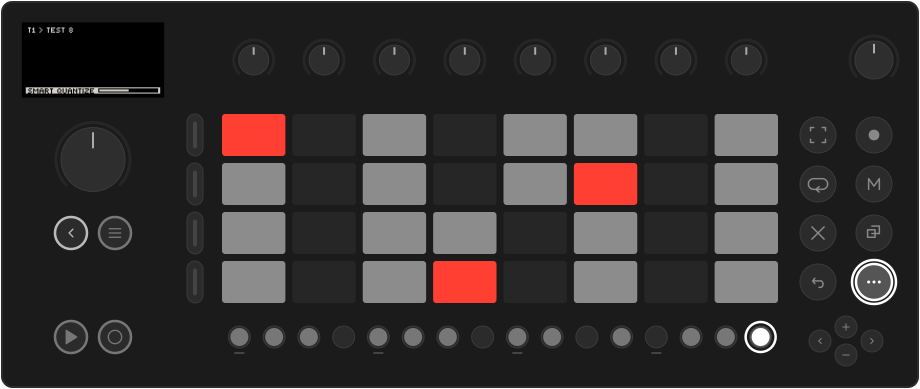
| Shift + hold Step 16 | Smart Quantize | The clip you recorded. Six takes, from tightened to developed. |
| Shift + hold Step 14 | Variation | Another clip on the track: your A part becomes a B. |
| Shift + hold Step 14 on an empty track | New Clip | Nothing: a new part that fits the scene. |
| Shift + hold Step 15 | Smart Double | The clip, doubled, with a new ending. |
All of them work in Track view. Hold until the bar along the bottom of the
screen fills. Let go early and nothing happens. A short tap keeps the button's
normal job (quantize, double), and on Step 14 a tap only shows HOLD TO GENERATE.
Choosing a take
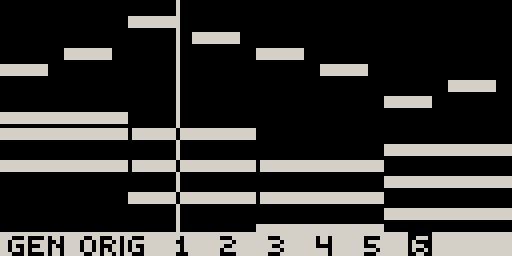
When the generator is done, the clip's notes fill the screen with the options along the bottom:
| Control | Action |
|---|---|
| Jog | Hear ORIG and each option. The clip swaps in place and keeps playing in time. Keep turning past the last one for every other generator that suits the clip (MORE on the strip while there are more). |
| Touch the jog | Show which generator made the option (GENERATOR: TURNAROUND). |
| Knobs | Reshape the option showing (below). |
| Pads, steps, held steps | Edit the option. Each option keeps its own edits. |
| Jog click or Back | Keep what is showing and close the preview. |
| Hold a track button | See the track's parameter pages while held. |
| Undo | Step back through what you did in the preview (knob turns, edits, option changes), then ORIG, then close it with the clip as before. Shift + Undo steps forward. Undo right after keeping an option reopens the preview. |
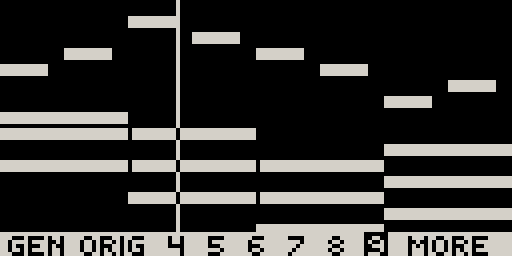
You can stack generators: during a preview, Shift + hold Step 16, 14 or 15 keeps what is showing and runs the next generator on it. For example, go from New Clip straight to Smart Double.
You can also leave and come back. Switch to another track or clip and the clip plays the option you were on. Come back and the preview is still open on that option, with the same knob settings.
The knobs
In a preview, the knobs belong to the option on screen. Every option opens with its knobs already at good positions, so you never have to touch them. Turn one and the option is remade at the new setting while it plays. Touch a knob to see its name and value:
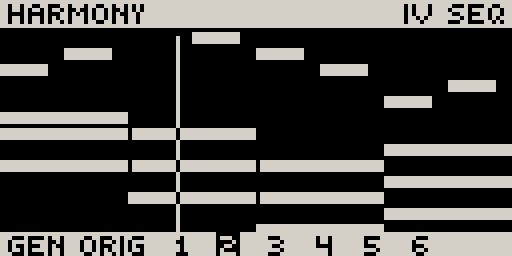
The knob lights show each position. A knob that does nothing for this option stays dark. Turning a knob back to where it was gives you the same notes again.
A knob name means the same thing on every generator:
| Knob | Turning right |
|---|---|
| AMOUNT | Rewrites more of the clip. |
| DENSITY | More notes; left thins to the strongest (AS IS in the middle). |
| LENGTH | Longer notes, towards legato. |
| RANGE | Wider intervals and voicings. |
| COLOUR | More colour notes (9ths, 11ths, 13ths); left goes back to plain chord tones. |
| CHORD RATE | Chords change more often under the part. |
| FIX NOTES | Puts more of the notes that clash with the chords right, worst first. |
| HARMONY | Further from the original chords; its value shows them (AM F C G). Turned all the way left, a New Clip part stays on one chord; the far right holds the boldest moves. |
| RHYTHM | A new rhythm for the same notes: push, syncopate, double, half, Euclid… |
| DRIFT | Walks the take away from itself one small change per click. Turn back to walk home. |
| SEED | Other takes of the same idea, closest first: each click right sounds a little further from the one you started on. |
| TIMING, GRID | From your feel to exactly on the grid; the grid. |
| GATE, SPACE | How long notes ring; how much room the part leaves between phrases. |
No generator has a swing knob: what they write is straight, and the Set's swing (Main page) swings it as it plays, like every clip.
Smart Quantize
Record something rough, then Shift + hold Step 16. Option 1 is always the tightest: your notes on the scene's groove, with only clashing notes moved. The others develop the clip, each changing one thing:
| Generator | What it does |
|---|---|
| TIGHT | Onto the grid. Its knobs also remove accidental doubles (CLEAN), even out or accent the velocities (VELOCITY), lengthen or shorten notes (LENGTH) and pick a timing feel: the scene's, laid back, pushed, shuffle (FEEL). |
| SHAPED, DECORATE | Chords filled out and moved smoothly; grace and passing notes added. |
| ANSWER | The second half answers the first. |
| GHOSTS, FILL (drums) | Ghost notes where there is room; a small fill into the loop. |
| MUTATE, MODE, OCTAVES | Notes moved through the scale; into another mode, or mirrored (MIRROR); thrown an octave. |
| RATCHET, SHIFT, HUMANIZE | Rolls and repeats; the clip moved in the bar; loosened like a player. |
On TIGHT, DENSITY turns left to keep only the strongest notes, right to fill the gaps with more of what the part already plays. On drums every pad keeps at least one hit.
Variation
You have an A part and want a B. Select a clip slot on the track (empty or not) and Shift + hold Step 14. The variation grows from the nearest clip above the slot and takes its length.
Variation offers six options, picked from some thirty generators to suit the part, closest first. Option 3 is a brand-new part of the track's kind (a New Clip BASS on a bass track, say), and option 6 a new part of a neighbouring kind, for when the B section wants something other than a variation. Every option keeps the track's role: chords stay chords, a bassline stays a bassline, drums never change pads. No option is simply the same loop rearranged.
The options come from three groups: close (new notes on the same rhythm, harmonies, re-voicings), rhythm (new basslines, displaced or Euclidean rhythms, comping) and experimental (a new part in the same style, phrase forms, motifs, grids). Touch the jog to see which generator made an option.
Which track to vary first. The first track you vary in an empty scene sets that scene's chords for the tracks after it. The bass or the chords are the best place to start.
New Clip
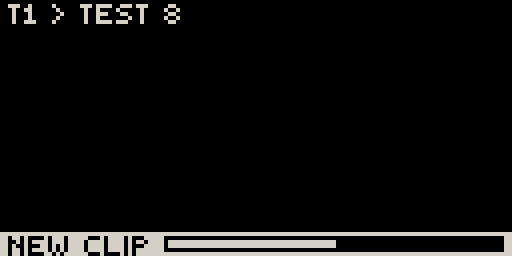
On a track with no other clip, Shift + hold Step 14 shows NEW CLIP.
When the bar fills, Movy writes a part from nothing, fitted to the scene: it
takes the other tracks' chords and swing, or picks a progression in the Set's
key when the scene is silent. Every run is new.
| Melodic options | |
|---|---|
| CHORDS | Comped chords on a rhythm. |
| PAD | Held chords, or held chords on a rhythm. |
| STABS | Short chords off the beat. |
| BASS | A bass figure: offbeat, rolling, octaves, 3-3-2… |
| ARP | Each chord broken up. |
| MELODY | A phrase that answers itself and lands home. |
| RIFF | A short cell repeated through the chords. |
| COUNTER | A line that moves where the band leaves room. |
| HOLD NOTE | A drone that moves with the chords. |
| PULSE | One note of each chord on a bass rhythm. |
| WALK | A bass that walks into each chord change. |
| LOOPER | A short line that locks into a loop and slowly changes. |
| HARMONIZE, FOLLOW | A second line under a melody another track plays (only when one does). |
Turn the jog past the first eight to reach the last options.
On CHORDS, DENSITY thins the rhythm to its strongest hits or fills it
in, keeping the figure. On PAD, PATTERN: HELD changes chord with the harmony, while
BAR, HALVES, 3-3-2, CHARLESTON, PUSH and 2+4 re-strike the chord on
a rhythm. Every chord change still sounds.
Drum tracks get six options. PAD EUCLID and PAD PATTERN write only the selected pad: press another pad and it gets its own part, so you build a kit one voice at a time (DENSITY at 0 removes it again). DRUM MAP, EUCLID KIT, BROKEN and PERC write the whole kit. DRUM MAP morphs between genres (four on the floor, disco, backbeat, 2-step, breakbeat, half time, trap, broken beat) with separate kick, snare and hat counts, and can end on a fill.
On every New Clip option, DRIFT walks the part away from itself one small change per click: turn it slowly while it plays to let the part evolve.
The new clip is as long as the slot's loop if you set one first (Loop view works on an empty slot), otherwise as long as the longest loop in the scene. During the preview, press Loop and set the bars to remake every option at the new length.
Smart Double
A tap on Shift + Step 15 doubles the loop. Hold it instead and the second half ends differently: it leads back to the top of the loop with a turnaround, a fill or a pickup. The first half stays exactly as you played it.
Endings include turnarounds, cadences, runs, stops and pickups on melodic tracks, and fills, rolls, breaks and beat repeats on drums.
ENDING sets how long the ending is. SEAMS on BOTH also gives the first
half a short ending of its own, like a question the second half answers. A loop
longer than 8 bars can't be doubled.
Good to know
- While a generator works, the header shows
QUANTIZING...,VARIATION...,DOUBLING...orNEW CLIP..., and the sequencer keeps playing. Back cancels. - If nothing can be made, a message says why (
NOTHING TO QUANTIZE), and the clip is unchanged. - Open previews are not saved with the Set. When you load another Set, each clip keeps the option it was showing.