Loop view
A clip can be many bars long, and its loop is the range of bars that actually plays. The loop does not have to start at bar 1: you can loop bars 3–4 of an eight-bar part and leave the rest in place for later.
Press Loop to open the Loop view (tap to stay in it, hold for a quick look). The step buttons become a bar selector, one step per bar, and the screen shows the clip's notes.
The bar selector
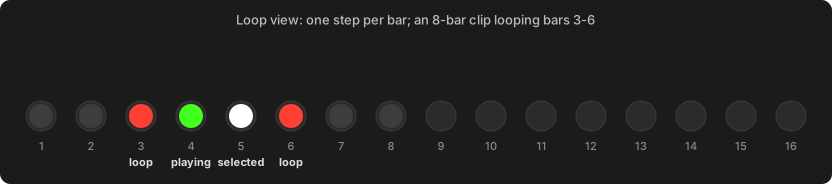
| Light | Bar |
|---|---|
| Green, pulsing | Playing now |
| White, pulsing | Selected: the bar shown on the step row when you leave Loop view |
| Track colour, pulsing | Inside the loop |
| Near-black | Part of the clip, outside the loop |
Works like Move: selecting and looping bars
| Gesture | Result |
|---|---|
| Press a bar | Select it for viewing and editing. |
| Double-tap a bar | Loop just that bar. |
| Press two bars | Loop everything between them. |
| Hold Loop + turn the jog | Grow or shrink the loop a bar at a time. |
| ◀ / ▶ | Previous / next bar (outside Loop view too). |
| Shift + Step 15 | Double the loop, notes and all. |
Setting a new loop also moves the view into it, so you never edit a bar that isn't playing.
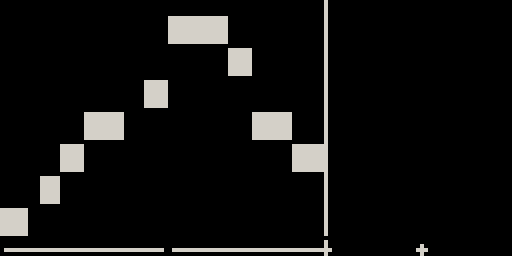
Growing a part. Press ▶ past the last bar and the strip shows a +:
an empty bar after the loop. Add a note there and it becomes part of the loop,
so a part grows just by playing into the next bar.
The piano roll
While Loop view is up, the screen shows the clip as a piano roll. Only the pitches the clip uses get a row (lowest at the bottom), so a four-note bassline fills the screen with four thick rows. Time runs left to right over the bars of the strip below, and a line sweeps across at the play position.
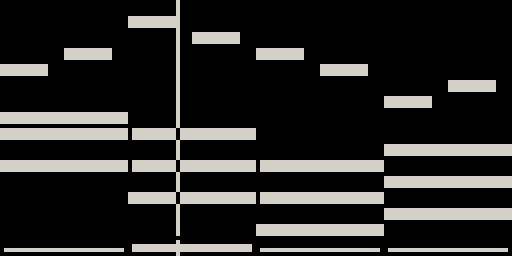
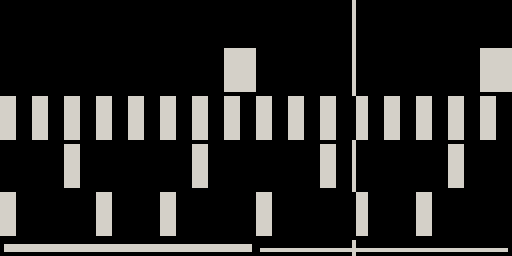
Notes you record appear as you play them. The knobs do nothing while the piano roll is up.