Quick start
A first loop in ten minutes: a synth part, a drum part, a parameter lock and a second scene. You need at least one synth and one drum module installed (see Install).
1. Open Movy
Hold Shift, touch the volume knob and click the jog wheel to open Schwung's Tools menu. Choose Movy. After a few loading screens the pads and knobs wake up, and you are on Track 1 of a new Set.
2. Load a synth
You start in the Chain view of Track 1: one slot at a time, its name at the
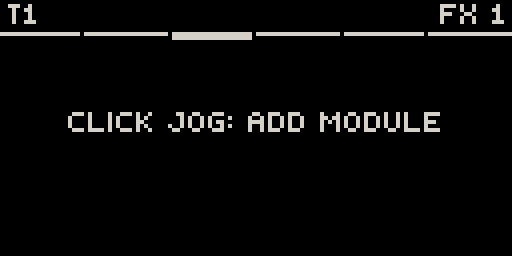
top right. Turn the jog until the top right reads SYNTH. An empty slot says
CLICK JOG: ADD MODULE (here on the FX 1 slot):
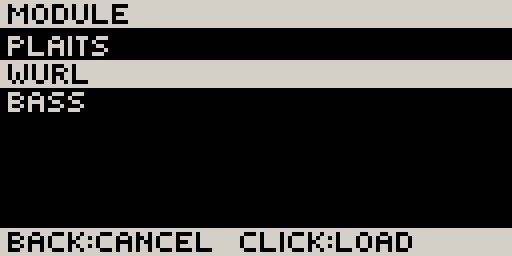
Click the jog. The module browser lists your installed synths. Turn to one and click to load it:
Click the jog again to open the synth's parameter pages. Turn the knobs and play the pads. Turning the jog moves through the module's pages.
3. Pick a key
Press Shift + Step 5 to open the Set page. Turn ROOT (knob 4) and KEY (knob 5), for example to A and Minor. The pads now light the key: the root in the track colour, the other notes of the scale in grey.
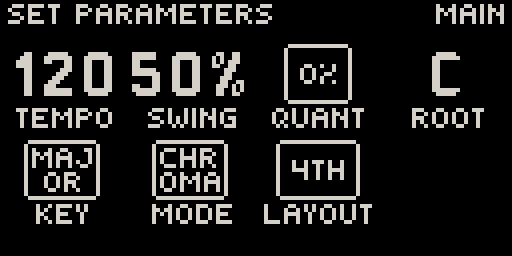
Press Back to return. Use + and − to move the keyboard up or down an octave.
4. Record a part
Press Rec. Movy counts in one bar with the metronome, then records. Play a bassline or a few chords. A first recording grows a bar at a time while you play. Press Rec again to stop recording; the clip keeps looping. Play stops the transport.
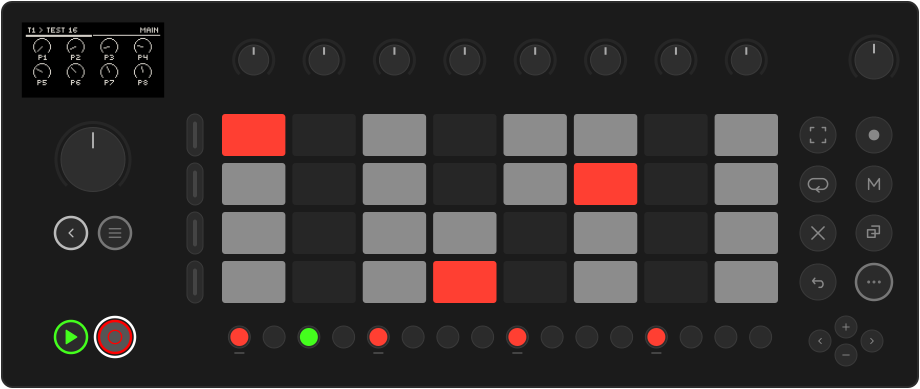
Too loose? Press Shift + Step 16 to quantize the clip. Each press moves to the next setting: 0 %, your default (set with QUANT on the Set page), 100 %. Your original timing is kept, so you can always go back.
5. Add drums on Track 2
Press Track button 2 (the second one down, left of the pads). Load a drum module into its SYNTH slot, the same way as in step 2. The pads become a drum rack: one pad per voice, numbered from the bottom left.
- Tap pads until the screen's header names the kick (often pad 1). The pad you pressed is now selected and lights white.
- Tap steps 1, 5, 9 and 13. They light up: four on the floor.
- Select the snare pad and tap 5 and 13. Select the hi-hat and fill in the off-beats.
Press Play to hear both tracks together.
6. Lock a value on one step
- Press the snare pad to select it.
- Hold step 13. While a step is held, the Step page comes to the front.
- Still holding, turn the jog to the snare's own page and turn a knob such as its pitch or decay. Let go.
That value now plays only on step 13, and only on the snare. This is a parameter lock:
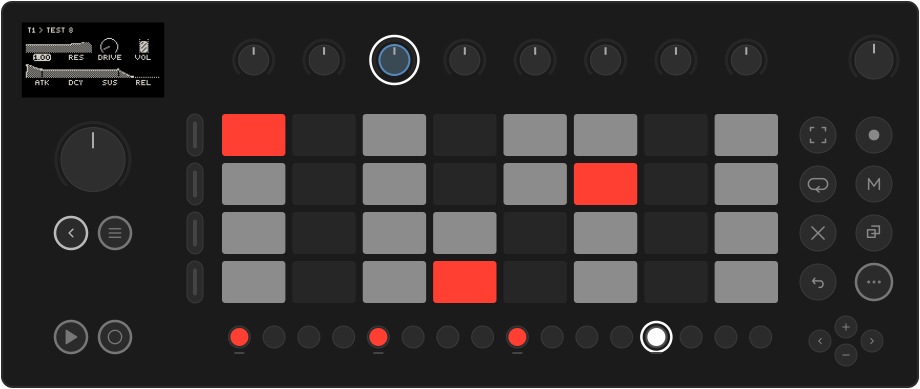
The Step page holds the step's own settings: VELocity, LENgth, PROBability and CONDition. Select the hi-hat pad, hold all its steps at once, and turn PROB (knob 3) to 60 %. The hats now play a little differently every bar.
7. Make a second scene
Press Note/Session. The pads show the clip grid: each row is a track, each column a clip slot. Your two clips sit in slot 1.
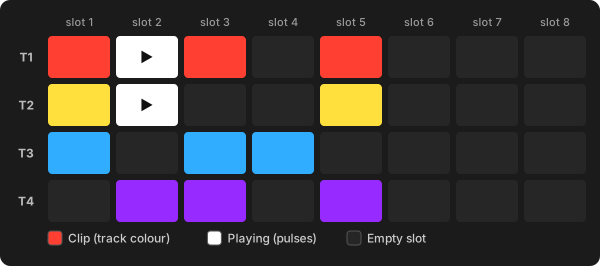
- Press the empty pad to the right of Track 1's clip (slot 2). That selects the slot.
- Press Note/Session to go back to the track and record a new part there, or let Movy write one: hold Shift + Step 14 until the bar on screen fills (see Generators).
- In Session view, hold Loop and press Step 1 or Step 3 to launch scene 1 or 2. A scene is a whole column of clips.
8. There is no Save button
Movy saves the Set by itself. To leave, press Back until Leave Movy? appears, then click Close Movy. Next time, Movy opens where you left off.
Where next
- The sequencer: step editing, note length, step recording, Capture.
- Locks, automation & LFOs: make parts move.
- Mixing & effects: levels, sends and the master chain.