Locks, automation & LFOs
Three ways to make a part move: lock a value on one step, record a knob movement, or let an LFO do it. Move has per-step automation too (hold a step, turn a knob); Movy builds on it with trig probability and conditions, locks on any page of the chain, locks on steps without notes, and per-voice locks on drums.
The Step page
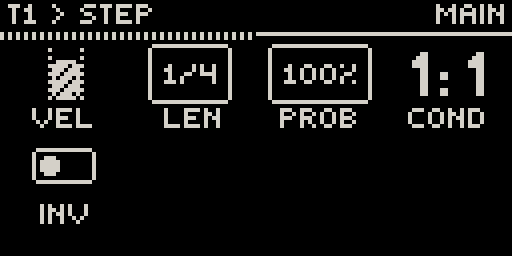
Hold a step that has a note. While it is held, the first page becomes the Step page, with that step's own settings on the knobs:
| Knob | Parameter | What it does |
|---|---|---|
| 1 | VEL | Velocity of this step. |
| 2 | LEN | Note length. |
| 3 | PROB | Chance that the step plays, 0–100 %. |
| 4 | COND | Trig condition: 2:4 plays on the 2nd of every 4 passes through the loop. |
| 5 | INV | Inverts the condition: 2:4 inverted plays on every pass except the 2nd. |
On a drum track, these settings belong to the selected voice on that step. Hold several steps at once to set them all together.
Musical uses:
- Probability on hi-hats or ghost notes makes a loop breathe without changing every bar by hand.
- Conditions turn a one-bar loop into a longer phrase: a crash on
1:4, a fill hit on4:4, an extra note on2:2(every second bar).
Parameter locks
While holding a step, turn any knob on any page of the track's chain. The new value is stored for that step only. You don't hear it change while you turn; it plays when the sequencer reaches the step.
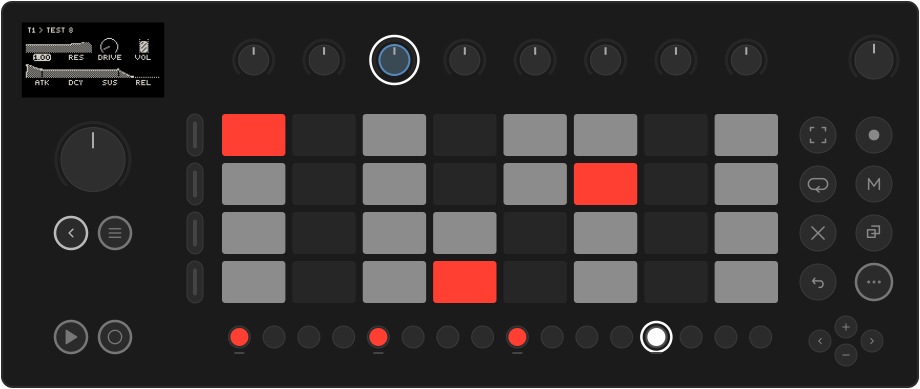
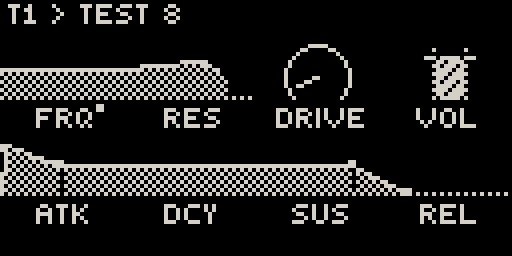
- The cell shows the step's locked value while the step is held, and a small
mark shows the parameter has automation:
- Lists and switches lock too: a filter type, a waveform, an on/off. Each knob detent moves one option.
- On a drum track, a lock belongs to the voice you locked it on: lock the snare's pitch on step 13 and only the snare changes.
- While a step is held, the jog still moves between pages, so one held step can lock parameters across the whole chain.
- Lock a step that has no note to change a sound between notes.
To remove a parameter's locks and automation from the clip: hold Delete and touch that knob. A message confirms the lane is cleared.
Recording automation
Works like Move: turn knobs while recording
Turn knobs while recording (Rec) and the movement is recorded into the clip. Unlike a lock, you hear the change as you make it. On playback, the cell follows the recorded value.
The MIX page's level, pan and sends can be locked and automated the same way.
LFOs
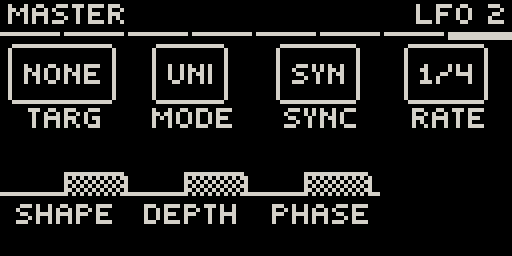
Each track has two LFOs on its LFO page (the slot before MIX in the chain). Each can modulate one parameter anywhere in the track's chain. Jog click the LFO slot to open it; the jog switches between LFO 1 and LFO 2.
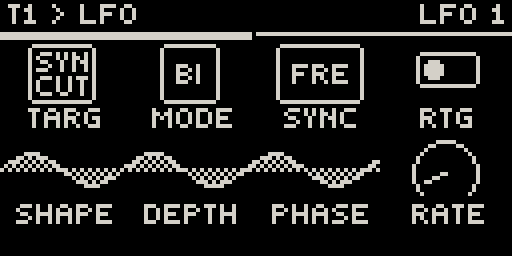
| Knob | Parameter |
|---|---|
| TARG | The parameter to modulate. Turn to choose; the routing is made when you let go. None turns the LFO off. |
| MODE | Unipolar or bipolar. |
| SYNC | Free-running (rate in Hz) or synced to the tempo (rate in note values). |
| RTG | Restart the cycle on every new note. |
| SHAPE, DEPTH, PHASE | Waveform, amount and starting point, drawn as one live waveform. |
| RATE | Speed: Hz when free, a note value such as 1/4 or 8T when synced. |
A synced LFO is locked to the bar while the transport runs, so a 1-bar filter sweep always starts on the downbeat. When the transport stops, it keeps moving at the tempo.
Assigning an LFO from the parameter
The quicker way: on any parameter page, hold a knob for about a second without turning it. A prompt appears at the bottom:
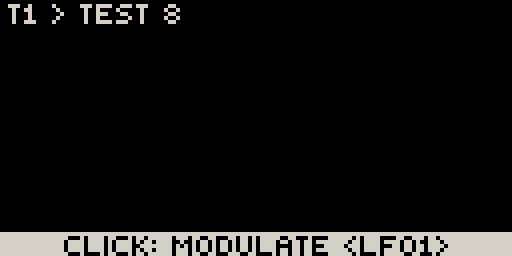
Turn the jog to pick LFO1 or LFO2 and click. You jump to that LFO's page to set its rate, shape and depth. A modulated parameter carries a mark on its cell. Hold the knob again to remove the modulation.
This works on number knobs of a track's modules. The MIX page and send effects can't take an LFO; automate them with locks or recording instead.
The master LFOs
The master chain (in Session view) has its own LFO page after MFX 4. It works the same way, with two differences: its targets are the four master effects, and it has no retrigger. Use it to sweep a filter or a reverb over the whole mix.